












Windows 11 version 25H2 කියන්නේ Windows 11 වලට 2025 annual feature update එක. Microsoft ඒක 2025 සැප්තැම්බර් 30 එදා public එකට release කරලා, 2025 ඔක්තෝබර් 16 ඉඳලා Windows Update හරහා eligible devices ඔක්කොටම roll out වෙන්න පටන්ගත්තා. මේ SoftwareKey.lk guide එකෙන් update එකෙන් ඇත්තටම මොකද වෙනස් වෙන්නේ, official ISO files කොහෙන්ද download කරන්නේ, ඕන hardware, සහ install කරන හැම ක්රමයක්ම — එක home PC එකක් upgrade කරන්නත්, machines කිහිපයකට media ලෑස්ති කරන්නත් — පෙන්නනවා.
Quick Summary
| Build 26200.6584 is the RTM release. 25H2 shares the same underlying platform as 24H2, so it introduces no major new exclusive features.If you already run 24H2, the upgrade arrives as a tiny enablement package and finishes in about 5 minutes with a single restart.Upgrading resets your support clock: 24 months for Home/Pro and 36 months for Enterprise/Education.Official ISOs are available in 38 languages for both x64 and Arm64 systems. |
|---|
Windows 11 Version 25H2 තේරුම්ගන්න
Version 25H2 කියන්නේ Microsoft's 2025 feature update එක — RTM build 26200.6584 එක 2025 ඔක්තෝබර් 16 එදා general availability එකට ආවා. සම්ප්රදායික feature update එකක් වගේ නෙවෙයි, ඒක brand-new features ලොකු batch එකක් ship කරන්නේ නෑ. ඒ වෙනුවට, අලුත් capabilities අවුරුද්ද පුරාම regular 24H2 cumulative updates වල කොටසක් විදිහට නිශ්ශබ්දව ඔබේ PC එකට දුන්නා, 25H2 එකෙන් ඒවා on කරනවා විතරයි.
මේක කරන්නේ enablement package (eKB) එකකින් — Windows Update හරහා push කරන KB 200ක් විතර වෙන package එකක්, ඒකෙන් system එකේ දැනටමත් staged කරලා තියෙන 25H2 feature set එක activate කරනවා. මේ design එක නිසා, upgrade එකට ප්රායෝගික වාසි කිහිපයක් තියෙනවා:
- Minimal downtime: installation එක මිනිත්තු 5ක් විතරින් ඉවර වෙනවා, restart එකක් විතරයි ඕන.
- No app re-testing: 24H2 සහ 25H2 එකම architecture එක share කරන නිසා, 24H2 එකේ run වුණ ඕනෑම දෙයක් 25H2 එකේත් run වෙනවා.
- Low bandwidth: gigabytes ගණන් system files වෙනුවට කුඩා package එකක් download කරනවා — metered හෝ slow connections වලට හොඳයි.
- Easy rollback: revert කරන එක සරලයි, ආපහුත් ඉක්මන් restart එකක් විතරයි ඕන.
25H2 එකේ මොකද වෙනස් වුණේ
Headline features නැත්නම්, ඇත්තටම වෙනස් වෙන්නේ මොකක්ද? පේන changes කණ්ඩායම් කිහිපයකට වැටෙනවා.
Security improvements
- Build-time සහ runtime vulnerability detection එක strong කරලා.
- Development එකේදී internally පාවිච්චි කරන AI-assisted secure coding.
- CVE-2024-30098 smart card authentication vulnerability එකට වැඩිදියුණු protection.
Removed components
- Security හේතූන් නිසා PowerShell 2.0 deprecate කරලා අයින් කරලා.
- Legacy WMIC (Windows Management Instrumentation command-line) tool එක සම්පූර්ණයෙන් අයින් කරලා.
Enterprise additions
- Enterprise connectivity වලට Wi-Fi 7 support.
- Enterprise/Education editions වල Group Policy හෝ Microsoft Intune එකෙන් pre-installed Microsoft Store apps remove කරන්න පුළුවන්කම.
- Temporary enterprise feature control හරහා expanded management.
Refreshed support lifecycle
Upgrade කරන්න තියෙන ලොකුම හේතුව reset support timeline එක — ඒකෙන් හැකි දිගම කාලයකට security සහ bug fixes ගලාගෙන යනවා.
| Edition | Support Period | Approx. End of Support |
|---|---|---|
| Home & Pro | 24 months from release | September 2027 |
| Enterprise & Education | 36 months from release | September 2028 |
Windows 11 25H2 Download කරන්නේ කොහොමද
Option 1: Microsoft එකෙන් Official ISO (recommended)
Microsoft එකෙන්ම direct download කරන එකෙන් හැමවෙලේම වඩාත්ම up-to-date build එක ලැබෙනවා. Single multi-edition ISO එකේ හැම edition එකම තියෙනවා; කොයි එක activate වෙනවද තීරණය කරන්නේ ඔබේ product key එක.
- Official download page එක open කරන්න:
- https://www.microsoft.com/software-download/windows11
- "Download Windows 11 Disk Image (ISO) for x64 devices" එකට scroll කරන්න.
- Dropdown එකෙන් "Windows 11 (multi-edition ISO)" select කරන්න.
- Download click කරලා, available 38 වලින් ඔබේ language එක තෝරන්න.
- Confirm click කරලා, 64-bit download එක තෝරන්න (හෝ device එක Arm processor එකක් නම් Arm64 ISO එක).
- Download එක automatically පටන්ගන්නවා — x64 වලට 7 GB විතර, Arm64 වලට ටිකක් පොඩියි.
Option 2: Enablement package (24H2 එකෙන් ඉක්මන්ම upgrade)
දැනටමත් 24H2 එකේ ඉඳලා 25H2 වලට switch වෙන්න විතරයි ඕන නම්, enablement package (KB5054156) එක ඉක්මන්ම route එක. මේ direct links stable:
- Windows 11 25H2 Enablement Package (KB5054156) – x64 (AMD/Intel)
- Windows 11 25H2 Enablement Package (KB5054156) – Arm64
Option 3: Direct ISO links (භාෂා 38ම)
Microsoft x64 වලට full ISO එක භාෂා 38කින් serve කරනවා (එකක් 6.9–7.2 GB විතර). වැදගත්: මේ direct download links පැය 24කට වරක් විතර expire වෙනවා. Link එකක් වැඩ නොකරනවා නම්, උඩ Microsoft's download page එකෙන් අලුත් එකක් regenerate කරන්න. වැඩිපුරම ඉල්ලන languages කිහිපයක්:
| Language | Locale | Size |
|---|---|---|
| English (US) | en-US | 7.2 GB |
| English (UK) | en-GB | 7.2 GB |
| Arabic | ar-SA | 6.9 GB |
| Chinese (Simplified) | zh-CN | 7.2 GB |
| French | fr-FR | 7.2 GB |
| German | de-DE | 7.2 GB |
| Hindi-equivalent locales & 31 more | varies | ~6.9–7.2 GB |
වෙන ඕනෑම language එකකට, Microsoft download page එකෙන් තෝරන්න — locales 38ම එතන list වෙලා.
Option 4: Media Creation Tool
Media Creation Tool එකෙන් latest build එක download කරලා bootable USB drive එකක් එක step එකකින් හදන්න පුළුවන්.
Download: Windows 11 25H2 Media Creation Tool
- MediaCreationToolW11.exe run කරලා UAC prompt එක accept කරන්න.
- Licence terms accept කරන්න.
- මේ PC එකට recommended options තෝරන්න, නැත්නම් ඔබේම language එකයි edition එකයි set කරන්න.
- USB flash drive (8 GB+, bootable media හදනවා) හෝ ISO file (පස්සට හෝ DVD එකට save කරන්න) select කරන්න.
- Prompts follow කරලා ඉවර කරන්න.
Option 5: Installation Assistant
USB drive එකක් නෑ, Windows Update එකෙන් update එක offer කරන්නෙත් නෑ නම්, Installation Assistant එකෙන් ISO එකක් save නොකර online upgrade කරනවා. දැනගන්න: ඒකට පුරාම stable connection එකක් ඕන, bandwidth ගොඩක් යනවා. Download: Windows 11 Installation Assistant
System Requirements
24H2 එකට සාපේක්ෂව අලුත් hardware හෝ software requirements නෑ. ඔබේ PC එක දැනටමත් Windows 11 run කරනවා නම්, ඒක 25H2 ත් run කරයි.
| Component | Requirement |
|---|---|
| Processor | 1 GHz or faster, dual-core, 64-bit (Intel 8th Gen+, AMD Ryzen 2000+, or Qualcomm Snapdragon) |
| RAM | 4 GB minimum (8 GB recommended) |
| Storage | 64 GB or larger (SSD strongly recommended) |
| Firmware | UEFI with Secure Boot capability |
| TPM | Trusted Platform Module (TPM) version 2.0 |
| Graphics | DirectX 12 compatible with WDDM 2.0 driver |
| Display | 720p (1280×720) minimum, larger than 9", 8 bits per colour channel |
| Account | Microsoft account required for Windows 11 Home setup |
| CPU instructions | SSE4.2 and POPCNT support are mandatory |
Tip: compatibility confirm කරන්න Microsoft's PC Health Check tool එක run කරන්න. සාමාන්ය නීතියක් විදිහට, 8th-generation processor එකක් හෝ ඊට අලුත් එකක් requirements සම්පූර්ණ කරනවා.
Windows 11 25H2 Install කරන්නේ කොහොමද
Method A: Windows Update (safest)
දැනටමත් 24H2 එකේ තියෙන ඕනෑම device එකකට ලේසිම, විශ්වාසවන්තම route එක මේක.
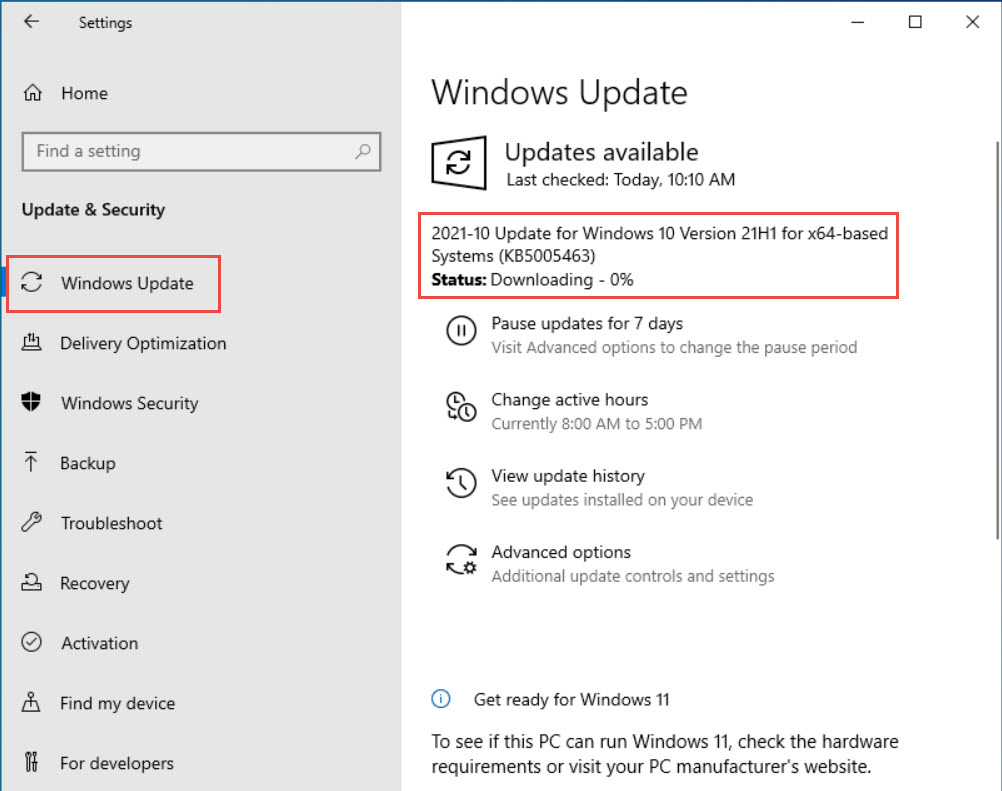
- Settings open කරන්න (Windows key + I).
- Windows Update එකට ගිහින් Check for updates click කරන්න.
- Eligible නම්, Windows 11 version 25H2 optional update එකක් විදිහට එනවා — Download & install click කරන්න.
- ඉවර වෙන්න දීලා, prompt වුණාම restart කරන්න.
Updates available වුණ ගමන් ලබාගන්න, එම screen එකේ "Get the latest updates as soon as they're available" on කරන්න.
Method B: ISO එකක් පාවිච්චි කරලා in-place upgrade
Windows Update එකෙන් තවම update එක offer නොකරන, ඒත් දැන්ම upgrade කරන්න ඕන නම් මේක පාවිච්චි කරන්න. ඒකෙන් ඔබේ files, apps, සහ settings තියාගන්නවා.
- 25H2 ISO එක download කරන්න (උඩ Option 1).
- ISO එක right-click කරලා Mount තෝරන්න — Windows ඒක virtual drive එකක් විදිහට attach කරනවා.
- Mount වුණ drive එක open කරලා setup.exe double-click කරන්න.
- UAC prompt එක accept කරලා, තියාගන්න ඕන දේ තෝරන්න: personal files සහ apps (recommended), files විතරයි, හෝ clean install එකකට මුකුත් නෑ.
- Wizard එක follow කරන්න. ඉවර කරන්න PC එක automatically restart වෙනවා.
Method C: Bootable USB එකකින් clean install
Fresh start එකකට, Rufus එකෙන් bootable media හදලා ඒකෙන් install කරන්න. මේකෙන් target drive එක මැකෙනවා, ඒ නිසා මුලින්ම backup කරන්න.
මුලින්ම, USB එක හදන්න:
- rufus.ie එකෙන් Rufus download කරලා install කරන්න.
- 8 GB+ USB drive එකක් දාන්න (ඒකේ තියෙන හැම data එකම මැකෙනවා).
- Rufus එකේ, Device එක ඔබේ USB එකට, Boot selection එක 25H2 ISO එකට set කරන්න.
- Partition scheme GPT, Target system UEFI (non-CSM), File system FAT32 පාවිච්චි කරන්න.
- START click කරලා, standard Windows 11 requirements තියාගන්න (ඕන නම් bypass option එක තෝරන්න), format warning එක confirm කරලා, මිනිත්තු 10–15ක් ඉන්න.
ඊට පස්සේ ඒකෙන් install කරන්න:
- USB එක දාලා restart කරලා boot menu එක open කරන්න (බොහෝවිට F12, F2, ESC, හෝ DEL).
- USB drive එක select කරලා, language, time, සහ keyboard layout තෝරන්න.
- Install now click කරලා product key එක ඇතුළත් කරන්න (හෝ "I don't have a product key" තෝරන්න).
- Edition එක තෝරලා, licence accept කරලා, Upgrade (files තියාගන්න) හෝ Custom (clean install) තෝරන්න.
- Target partition එක select කරලා Windows install වෙන්න දීලා (මිනිත්තු 20–40), out-of-box setup එක complete කරන්න.
Conclusion
Windows 11 25H2 එකෙන් dramatic අලුත් features නොගෙන ආවත්, ඒක install කරන එක තවම වටිනවා. Lightweight enablement package එකෙන් 24H2 එකෙන් upgrade කරන එක ගොඩක් ලේසි කරනවා, වඩාත්ම වැදගත්, ඒක ඔබේ support timeline එක reset කරන නිසා Microsoft එකෙන් security සහ stability updates තව දිගට ලැබෙනවා. පරණ hardware එකක නම් හෝ අලුතෙන් පටන්ගන්නවා නම්, උඩ ISO සහ bootable-USB methods හැම scenario එකක්ම cover කරනවා.
Upgrade කරන්න හෝ installation media හදන්න උදව් ඕනද? SoftwareKey.lk support team එක්ක කතා කරන්න, නැත්නම් තව guides වලට softwarekey.lk එකට යන්න.