












Windows 11 කියන්නේ Microsoft's current desktop operating system එක, ඒකට කලින් තිබුණ Windows 10 වගේම, ISO files free download කරන්න Microsoft එකෙන්ම direct available. ISO එකකින් clean install එකක් කරන්න, නැත්නම් existing Windows 10 හෝ පරණ Windows 11 machine එකක් upgrade කරන්න පුළුවන්.
Windows 11 install කරන්න ක්රම කිහිපයක් තියෙනවා, ඒත් හැම method එකක්ම මුලින්ම එක දෙයක් මත depend වෙනවා: ඔබේ PC එක minimum hardware requirements සම්පූර්ණ කරන්න ඕන. මේ SoftwareKey.lk guide එකෙන් වෙනස් methods පාවිච්චි කරලා Windows 11 ISO එක download කරන ආකාරය, bootable USB drive එකක් හදන ආකාරය, සහ පටන් ඉඳලා අවසානය දක්වා operating system එක install කරන ආකාරය පෙන්නනවා.
Download Windows 11 ISO
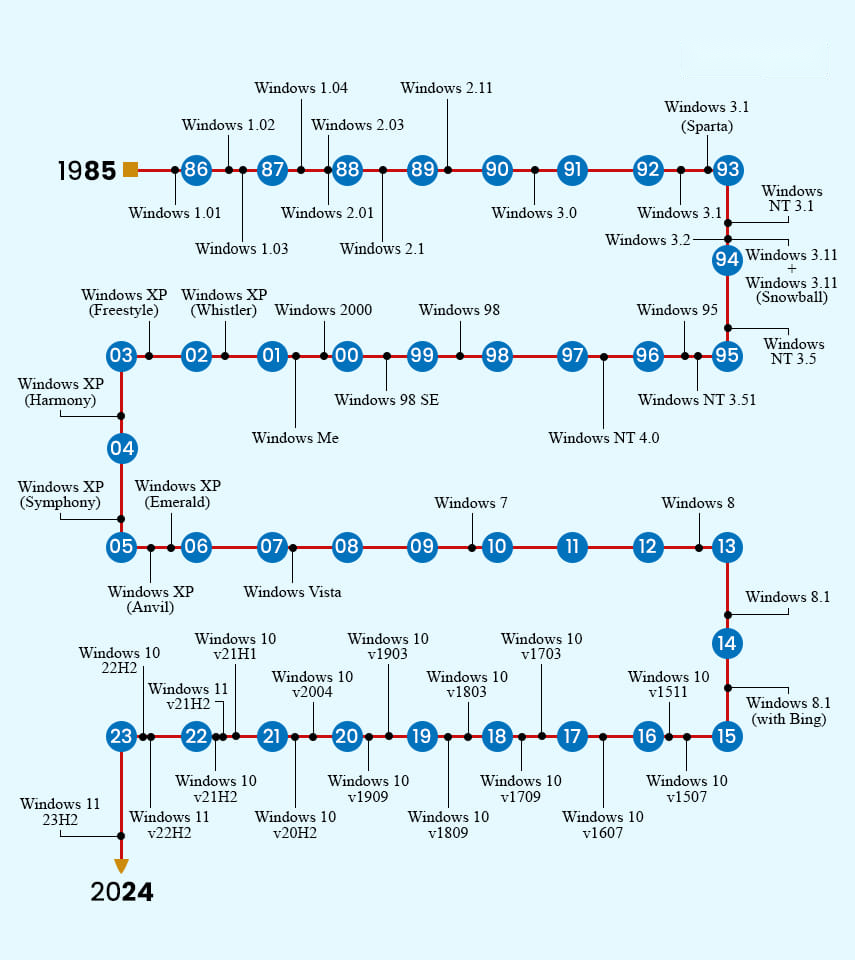
පහත table එකේ available Windows 11 versions list කරලා. නවතම feature updates දෙකට අපි dedicated download guides recommend කරනවා; පරණ versions Microsoft's archive page එකට link වෙනවා.
| Version | Platform | Download |
|---|---|---|
| Windows 11 25H2 | 64-bit | Download ISO guide |
| Windows 11 24H2 | 64-bit | Download ISO guide |
| Windows 11 23H2 | 64-bit | Microsoft download page |
| Windows 11 22H2 | 64-bit | Microsoft download page |
| Windows 11 21H2 | 64-bit | Microsoft download page |
හැම Windows 11 ISO එකක්ම පහත editions bundle කරනවා, installation එකේදී තෝරගන්නවා:
- Windows 11 Home
- Windows 11 Home N
- Windows 11 Home Single Language
- Windows 11 Education
- Windows 11 Education N
- Windows 11 Pro
- Windows 11 Pro Education
Method 1: Microsoft එකෙන්ම ISO එක Direct Download කරන්න
Microsoft's own site එකෙන් download කරන එකෙන් widest language choice එක ලැබෙනවා, හැමවෙලේම latest available build එක serve කරනවා. Note: මේ method එකෙන් automatically newest Windows 11 version එක download වෙනවා.
- ඕනෑම browser එකක Microsoft's Windows 11 download page එක open කරන්න.
- "Download Windows 11 Disk Image (ISO)" එකට scroll කරලා, dropdown එකෙන් "Windows 11 (multi-edition ISO)" select කරලා Download click කරන්න.
- Preferred language එක තෝරලා Confirm click කරන්න.
- 64-bit Download button එක click කරන්න — ISO download එක වහාම පටන්ගන්නවා.
Windows 11 භාෂා 37කින් download කරන්න පුළුවන් — Arabic, Brazilian Portuguese, Bulgarian, Chinese (Simplified සහ Traditional), Croatian, Czech, Danish, Dutch, English, English International, Estonian, Finnish, French Canadian, German, Greek, Hebrew, Hungarian, Italian, Japanese, Korean, Latvian, Lithuanian, Norwegian, Polish, Portuguese, Romanian, Russian, Serbian Latin, Slovak, Slovenian, Spanish, Spanish (Mexico), Swedish, Thai, Turkish, සහ Ukrainian ඇතුළුව.
Method 2: Media Creation Tool පාවිච්චි කරන්න
Microsoft's Media Creation Tool (MCT) එකෙන් standalone ISO එකක් download කරලා bootable media හදන්න පුළුවන්. Method 1 වගේම, ඒකත් හැමවෙලේම latest build එක ගන්නවා.
- Windows 11 Media Creation Tool එක download කරලා run කරන්න.
- Licence terms accept කරන්න.
- වෙන PC එකකට media හදනවා නම්, "Use the recommended options for this PC" untick කරලා language එකයි edition එකයි තෝරලා Next click කරන්න.
- ISO file option එක select කරලා Next click කරන්න.
- ප්රමාණවත් free space තියෙන save location එකක් තෝරලා Save click කරන්න — download එක පටන්ගන්නවා.
- ඉවර වුණාම Finish click කරන්න. පස්සේ run වෙන කෙටි setup cleanup එක ignore කරන්න පුළුවන්.
Latest Windows 11 Version එකට Upgrade කරන්න
ISO එකක් download කරලා clean install කරනවා වෙනුවට in-place upgrade කරන්න කැමති නම්, Windows Update හෝ Installation Assistant පාවිච්චි කරන්න පුළුවන්.
Windows Update හරහා Upgrade කරන්න
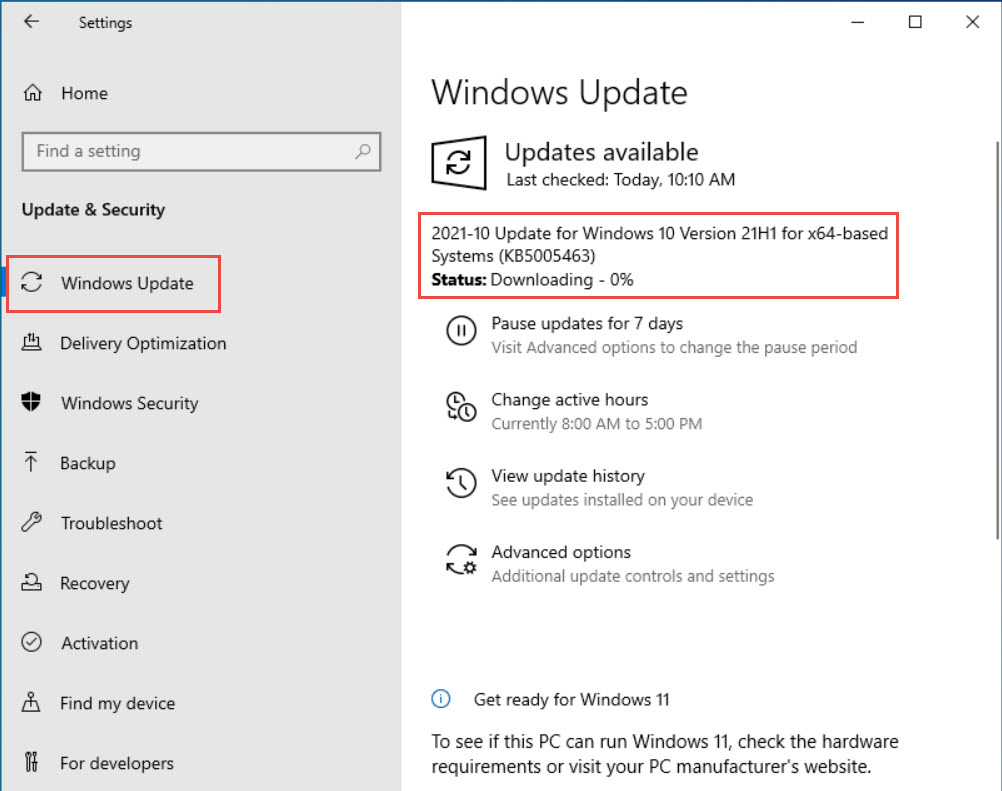
Windows 10 එකෙන් Windows 11 වලට යන්න, ඔබේ device එක minimum requirements සම්පූර්ණ කරන්න ඕන. Windows 10 එකේ, upgrade එක මෙතන check කරන්න:
Settings > Update & Security > Windows Update
දැනටමත් පරණ Windows 11 build එකක ඉඳලා අලුත් එකක් ඕන නම්, ඒ වෙනුවට මෙතනට යන්න:
Settings > Windows Update
Check for updates click කරන්න. Upgrade එක offer කරනවා නම්, පටන්ගන්න Download and Install click කරන්න.
Installation Assistant එකෙන් Upgrade කරන්න
Installation Assistant එක ඔබ upgrade කරන්න ඕන PC එකේ run වෙනවා. ඒක Arm-based PCs වල වැඩ කරන්නේ නෑ — ඒවා manual ISO method එක පාවිච්චි කරන්න ඕන.
- Windows 11 Installation Assistant එක download කරලා run කරන්න.
- Prompt වුණාම, Get PC Health Check app click කරලා install කරලා, system එක requirements සම්පූර්ණ කරනවා කියලා confirm කරන්න.
- Installation Assistant එකට ආපහු ඇවිත් Refresh click කරන්න.
- Accept and install click කරන්න. Tool එක Windows 11 download කරනවා.
- Upgrade එක complete කරන්න prompt වුණාම computer එක restart කරන්න.
Windows 11 Insider ISO එකක් Download කරන්න
Clean install එකකට Windows 11 Insider (preview) ISOs ත් download කරන්න පුළුවන්. දැනගන්න: Insider build එකක් install කළාම stable release එකට roll back කරන්න බෑ — further updates pause කරන්න විතරයි පුළුවන්. Windows Insider Program එකේ register කරපු Microsoft account එකකුත් ඕන වෙනවා.
- Windows Insider Preview Downloads page එක open කරන්න.
- ඔබේ Insider-registered Microsoft account එකෙන් sign in වෙන්න.
- Dropdown එකෙන් Insider build එකක් select කරලා Confirm click කරන්න.
- Language එක තෝරලා Confirm click කරන්න.
- ISO download එක පටන්ගන්න 64-bit Download click කරන්න.
Minimum System Requirements බලන්න
Install කරන්න කලින්, ඔබේ PC එක qualify වෙනවද confirm කරන්න. Windows 11 launch වුණාම, security සහ reliability වැඩි කරන්න Microsoft requirements දැඩි කළා. ප්රධාන කරුණු:
- 64-bit only — 32-bit systems supported නෑ.
- අඩුම CPU cores 2ක්.
- TPM 2.0 ඕන. ඒක ගොඩක් 8th-generation CPUs සහ ඊට අලුත් ඒවා වල built-in, ඒ නිසා 8th-Gen processor එකක් හෝ ඊට අලුත් එකක් effectively baseline එක.
- UEFI firmware only — legacy BIOS boot supported නෑ.
එක එක item manually check කරන එක tedious, ඒ නිසා ලේසිම route එක Microsoft's PC Health Check app එක: install කරලා, "Check now" click කරන්න, ඒක ඔබේ PC එක Windows 11 support කරනවද කියලා report කරනවා. නැත්නම්, hardware upgrade කරන්න, නැත්නම් requirements bypass කරන එක (advanced, Microsoft support නොකරන) බලන්න පුළුවන්.
Bootable Windows 11 USB Drive එකක් හදන්න
ISO එකක් bootable media බවට හරවන එක සරලයි. DVD එකකට වඩා USB drive එකක් convenient. Rufus හෝ Ventoy පාවිච්චි කරන්න පුළුවන්; පහත steps වල Rufus පාවිච්චි කරනවා.
- 8 GB+ USB drive එකක් plug කරලා ඒකේ contents backup කරන්න — ඒක format වෙලා මැකෙනවා.
- rufus.ie එකෙන් Rufus download කරලා (portable version එකට install එකක් ඕන නෑ) run කරන්න.
- Device යටතේ, ඔබේ USB drive එක select කරන්න.
- Boot selection යටතේ, Select click කරලා ඔබේ Windows 11 ISO එක තෝරන්න.
- ඉතුරු settings defaults වල තියලා Start click කරන්න.
- Windows 11 customization options තෝරලා (Rufus එකට optionally TPM/Secure Boot checks bypass කරන්න පුළුවන්) OK click කරන්න.
- Green "Ready" bar එක එනකම් ඉඳලා Rufus close කරන්න. ඔබේ bootable drive එක ready.
ISO එකෙන් Windows 11 Install කරන්න
Bootable drive එක ready වුණාම, Windows 11 install කරන්න පුළුවන්:
- Target PC එක minimum requirements සම්පූර්ණ කරනවා කියලා confirm කරන්න.
- Bootable USB drive එක target computer එකට දාන්න.
- Power on හෝ reboot කරලා one-time boot menu එක open කරන්න (බොහෝවිට F12, F10, හෝ Esc).
- USB drive එක select කරලා ඒකෙන් boot කරන්න.
- Windows Setup screen එකේ Next click කරලා, Install Now click කරන්න.
- "I don't have a product key" click කරන්න — installation එකට පස්සේ activate කරන්න පුළුවන්.
- ඔබට ඕන Windows 11 edition එක select කරලා Next click කරන්න.
- Licence agreement එක accept කරලා Next click කරන්න.
- Clean install එකකට "Custom: Install Windows only (advanced)" තෝරන්න.
- Partition එක හදන්න/select කරන්න (primary drive එකට අඩුම 40 GB තියන්න), extra partitions ගැන prompt එකක් confirm කරලා, Next click කරන්න.
- Windows 11 install වෙලා කිහිප වතාවක් reboot වෙන්න පුළුවන්. Setup ඉවර කරන්න Out-of-Box Experience (OOBE) screens follow කරන්න.
Frequently Asked Questions
Windows 11 මිලදී ගන්නේ කොහොමද?
දැනට standalone Windows 11 licence එකක් direct මිලදී ගන්න බෑ. ඒ වෙනුවට, Windows 11 pre-installed device එකක්, නැත්නම් free upgrade එකට qualify වෙන eligible Windows 10 device එකක් ගන්න.
මගේ PC එක Windows 11 වලට upgrade කරන්න පුළුවන්ද?
ඔව්, Windows Update හරහා, system එක minimum requirements සම්පූර්ණ කරනවා නම්. සමහර features වලට TPM 2.0 සහ Secure Boot වගේ extra hardware ඕන, ඒ නිසා full experience එකට compatibility වැදගත්.
Windows 11 download කරන්න කොච්චර වෙලා යනවද?
ISO එක 5 GB විතර, ඒ නිසා ඔබේ internet speed එක අනුව මිනිත්තු 30 ඉඳලා 60 විතර බලාපොරොත්තු වෙන්න.
Installation එකට කොච්චර වෙලා යනවද?
සාමාන්යයෙන් මිනිත්තු 15 ඉඳලා 30, hardware එක අනුව.
මට Windows 10 පාවිච්චි කරගෙන යන්න පුළුවන්ද?
Windows 10 users ලාට upgrade එක free, ඒත් ගන්නම කියලා බලකරන්නේ නෑ. දැනගන්න: Microsoft mainstream Windows 10 updates 2025 ඔක්තෝබර් 14 එදාට නවත්තලා, ඒ නිසා Windows 10 එකේ ඉන්න එක කියන්නේ unsupported OS එකක් run කරන එකයි.
Version එකක් තෝරගන්න, installation media හදන්න, හෝ compatibility check කරන්න උදව් ඕනද? SoftwareKey.lk support team එක්ක කතා කරන්න, නැත්නම් තව guides වලට softwarekey.lk එකට යන්න.