












Windows Error 0xC000021A (Blue Screen Stop Code) එක Fix කරන්නේ කොහොමද
මේ fatal system-process BSoD එකෙන් recover වෙන්න Safe Mode, file repair, සහ startup fixes පාවිච්චි කරන්න.
Overview
Stop code 0xC000021A කියන්නේ critical Windows subsystem එකක් (winlogon හෝ csrss වගේ) fail වුණා කියන එකයි, ඒ නිසා system එක shutdown වෙන්න බල කරනවා. හේතු අතරට corrupt system files, bad drivers, හෝ fail වුණු update එකක් තියෙනවා. මේ guide එකෙන් stability එක restore කරනවා, බොහෝ විට Recovery Environment එකෙන්.
Windows BSoD error 0xC000021A.
Key Takeaways
- Fail වුණු critical system process එකක් නිසා ඇති වෙනවා.
- Fix කරන්න Safe Mode හෝ WinRE එකට boot කරන්න.
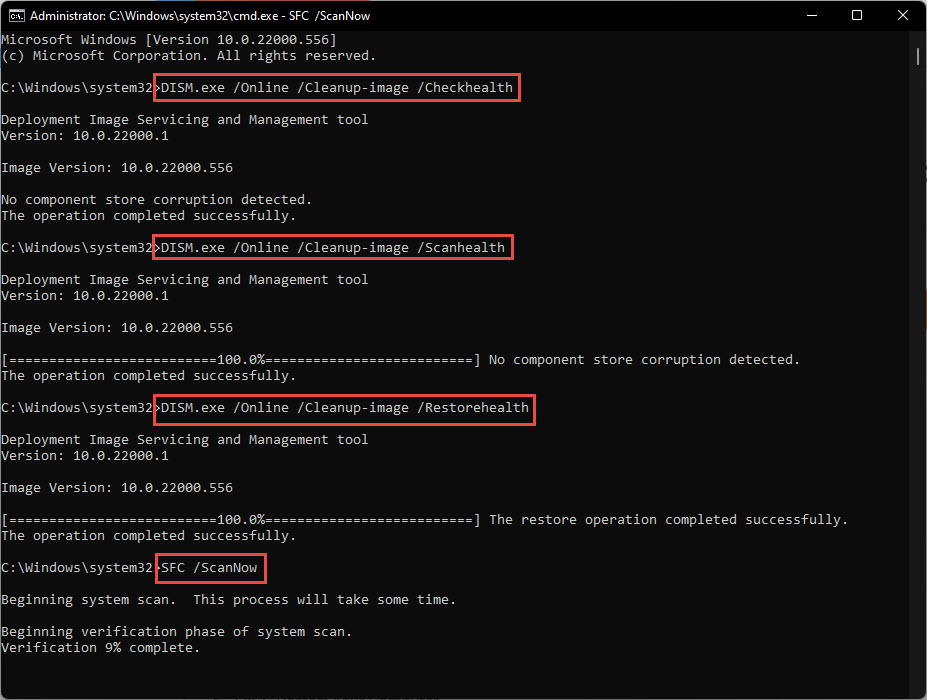
- SFC/DISM වලින් corrupt system files repair කරනවා.
- Startup Repair සහ BCD rebuild වලින් boot damage එක fix කරනවා.
Fix 1: Boot into Safe Mode
1. WinRE එකෙන්: Troubleshoot > Advanced options > Startup Settings > Restart.
2. Safe Mode එකට යන්න 4 press කරන්න (networking සඳහා 5).
3. Windows boot වුණොත්, ඒකට හේතු වුණු recent updates/drivers uninstall කරන්න.
Fix 2: Repair System Files
1. WinRE එකෙන් Command Prompt එක open කරන්න (Troubleshoot > Advanced options > Command Prompt).
2. මේක Run කරන්න: sfc /scannow /offbootdir=C:\ /offwindir=C:\Windows
3. මේක Run කරන්න: DISM /Image:C:\ /Cleanup-Image /RestoreHealth
4. Restart කරන්න.
Fix 3: Startup Repair and BCD
1. WinRE එකේ, Troubleshoot > Advanced options > Startup Repair run කරන්න.
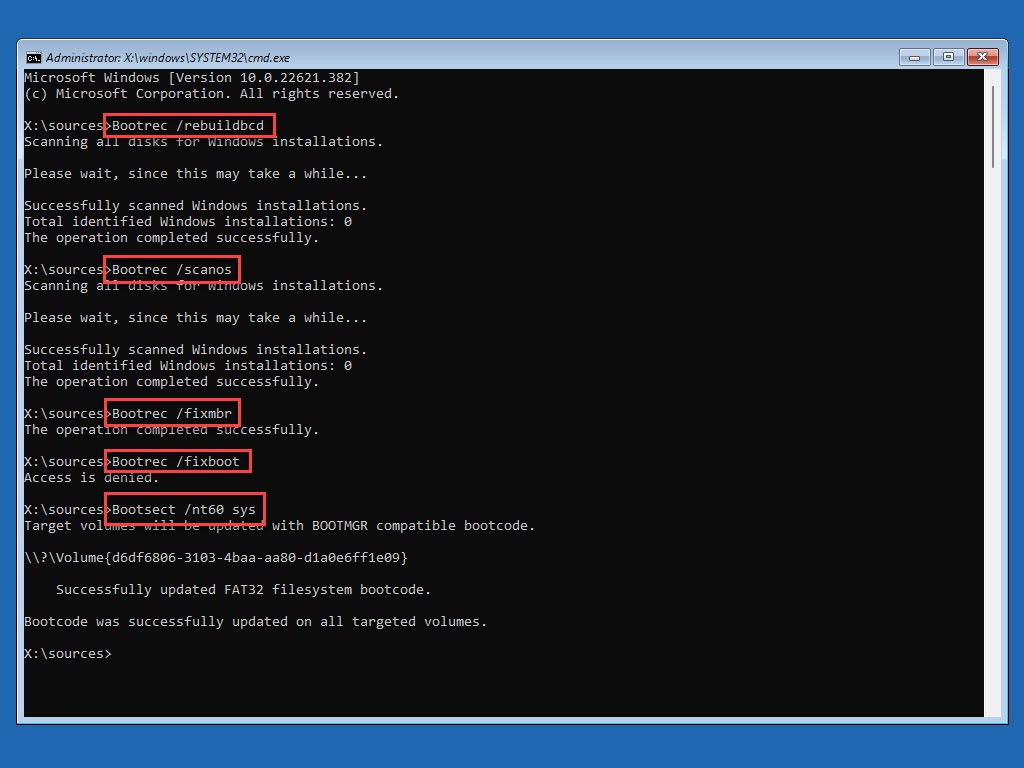
2. ඕන නම්, boot data rebuild කරන්න: bootrec /scanos, bootrec /rebuildbcd, bootrec /fixmbr, bootrec /fixboot.
3. Restart කරන්න.
Fix 4: Drivers, Disk, Malware
1. Safe Mode එකේදී, මෑතක වෙනස් වුණු drivers update හෝ reinstall කරන්න (Device Manager).
2. Disk එක check කරන්න chkdsk /f /r C: run කරන්න.
3. Windows Security එකෙන් malware scan කරන්න.
4. Specific trusted driver එකක් boot එක block කරනවා නම් විතරක්, driver signature enforcement එක තාවකාලිකව disable කරන්න.
Fix 5: Restore or Reset
1. Error එකට කලින් point එකකට System Restore පාවිච්චි කරන්න (WinRE > Advanced options > System Restore).
2. මුකුත් වැඩ නොකළොත්, last resort එක විදිහට ඔයාගේ files තියාගෙන Windows reset කරන්න.
Troubleshooting
Problem: Update එකකට පස්සෙ එසැණින්ම error එක එනවා.
Solution: WinRE > Uninstall Updates එකෙන් latest quality/driver update එක uninstall කරන්න, නැත්නම් Safe Mode එකේදී roll back කරන්න.
Problem: Safe Mode එකට යන්න බෑ.
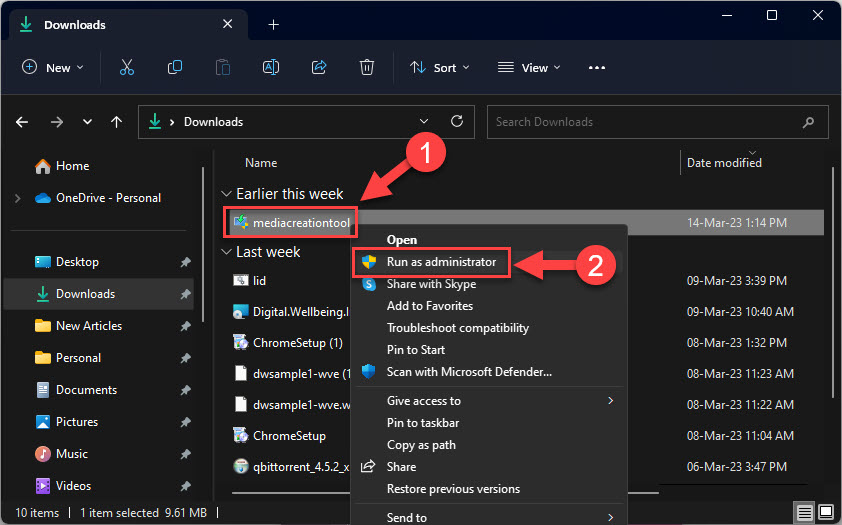
Solution: Windows installation media එකෙන් boot කරලා Repair your computer > Troubleshoot පාවිච්චි කරන්න.
Problem: SFC normal mode එකේ run කරන්න බෑ.
Solution: ඉහත පෙන්නපු විදිහට /offbootdir සහ /offwindir එක්ක WinRE එකෙන් offline run කරන්න.
Problem: නැවත නැවත එනවා.
Solution: Fail වෙන disk එකක් හෝ RAM එකක් නිසා මේක වෙන්න පුළුවන් — chkdsk සහ Windows Memory Diagnostic run කරන්න.
Conclusion
0xC000021A stop code එකෙන් critical process failure එකක් signal කරනවා. Safe Mode හෝ WinRE එකට boot කරලා, SFC/DISM වලින් system files repair කරලා, Startup Repair run කරලා, recent updates/drivers undo කරන්න — error එක නොනැවතී පවතිනවා නම් විතරක් System Restore හෝ reset එකකට යන්න.