












Overview
Outlook error 0x800CCC1A ("the server does not support the connection encryption type") එකෙන් අදහස් වෙන්නේ ඔබේ account එකේ encryption සහ port settings mail server එක බලාපොරොත්තු වෙන එකට match වෙන්නේ නෑ කියලා. මේ guide එකෙන් ඒවා correct කරලා error එක clear කරන ආකාරය පෙන්නනවා.
Error 0x800CCC1A කියන්නේ Outlook එකයි mail server එකයි අතර encryption/port mismatch එකක්.
Key Takeaways
- Error එක encryption type එකක් හෝ port mismatch එකක්.
- හරි SSL/TLS සහ ports set කරන්න: IMAP 993, POP 995, SMTP 465 හෝ 587.
- Firewalls හෝ antivirus secure mail ports block කරන්න පුළුවන්.
- Corrupted OST/PST එකක් හෝ missing TLS 1.2 එකකුත් මේකට හේතු වෙන්න පුළුවන්.
Fix 1 — හරි Encryption සහ Ports Set කරන්න
1. Outlook එකේ, File > Account Settings > Account Settings වලට ගිහින්, account එක select කරලා, Change > More Settings > Advanced click කරන්න.
2. Incoming server: IMAP 993 (SSL/TLS) හෝ POP 995 (SSL/TLS) set කරන්න.
3. Outgoing (SMTP) server: 465 (SSL) හෝ 587 (STARTTLS) set කරන්න.
4. එක එක එකට හරි encryption method එක තෝරලා, OK click කරලා, account එක test කරන්න.
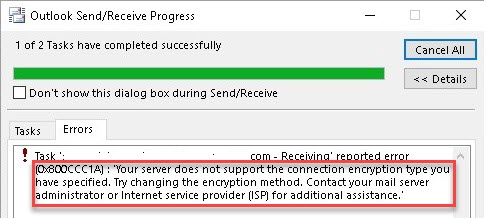
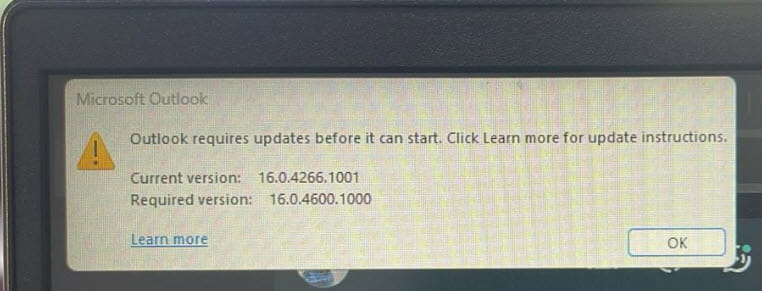
Connection encryption ගැන Outlook error message එක.
Fix 2 — Firewall සහ Antivirus Check කරන්න
1. Third-party antivirus email scanning එකයි Windows Firewall එකයි තාවකාලිකව disable කරලා test කරන්න.
2. Outlook connect වෙනවා නම්, security off තියනවා වෙනුවට Outlook සහ mail ports exceptions විදිහට add කරන්න.
3. ඔබේ security software ආපහු enable කරන්න.
Fix 3 — OST/PST File එක Repair කරන්න
1. Outlook close කරන්න.
2. ඔබේ Office install folder එකෙන් Inbox Repair Tool (SCANPST.EXE) run කරන්න.
3. ඒක ඔබේ .ost/.pst file එකට point කරලා scan/repair run කරන්න.
4. Outlook reopen කරලා test කරන්න.
Fix 4 — TLS 1.2 Enable කරන්න
1. Internet Properties (inetcpl.cpl) > Advanced tab open කරන්න.
2. "Use TLS 1.2" tick වෙලා තියෙනවා කියලා බලන්න (provider එක require කරනවා නම් obsolete SSL 3.0/TLS 1.0 untick කරන්න).
3. Apply කරලා restart කරලා, Outlook retry කරන්න.
Troubleshooting
Problem: Ports fix කළාට පස්සෙත් fail වෙනවා.
Solution: ඔබේ provider එක specify කරන exact server names එකයි encryption එකයි ආපහු බලන්න (දැන් ගොඩක් අය app password එකකුත් require කරනවා).
Problem: Sending fail වෙනවා ඒත් receiving වැඩ කරනවා.
Solution: SMTP settings වැරදියි — authentication enable කරලා port 587 (STARTTLS) හෝ 465 (SSL) පාවිච්චි කරන්න.
Problem: Antivirus එක ආපහු ආපහු block කරනවා.
Solution: Antivirus එකේ email/SSL scanning feature එක disable කරන්න, නැත්නම් Outlook සහ mail ports exclusions විදිහට add කරන්න.
Problem: Provider එකට app password එකක් ඕන.
Solution: App-specific password එකක් generate කරලා (2FA තියෙන accounts වලට) normal password එක වෙනුවට ඒක පාවිච්චි කරන්න.
Conclusion
Error 0x800CCC1A කියන්නේ mismatched encryption සහ ports. හරි SSL/TLS එක්ක IMAP 993/POP 995 සහ SMTP 465/587 set කරලා, firewall/antivirus blocks clear කරලා, TLS 1.2 enable කියලා බලන්න — එතකොට Outlook ආපහු securely connect වෙයි.
About SoftwareKey.lk
මේ guide එක SoftwareKey.lk Knowledge Base එකේ කොටසක්. තව step-by-step IT guides සහ support වලට softwarekey.lk එකට යන්න.