












Overview
"A connection was successfully established, but then an error occurred during the pre-login handshake" කියන error එක බොහෝවිට එන්නේ security වලට (බ. PCI DSS) පරණ protocols (SSL 2.0/3.0, TLS 1.0) disable කළාට පස්සේ — SQL Server එකට TLS 1.2 negotiate කරන්න බැරි වෙන නිසා. මේ guide එකෙන් fixes පැහැදිලි කරනවා.
Pre-login handshake error එක බොහෝවිට legacy TLS/SSL disable කරපු එකට පස්සේ එනවා.
Key Takeaways
- Error එක සාමාන්යයෙන් legacy protocols disable කළාට පස්සේ TLS version mismatch එකක්.
- SQL Server එකයි .NET client එකයි දෙකටම TLS 1.2 support ඕන.
- TLS 1.2 support එකතු කරන SQL Server cumulative update එක install කරන්න.
- .NET Framework 4.6+ (TLS 1.2 support කරන) install වෙලා තියෙනවා කියලා confirm කරන්න.
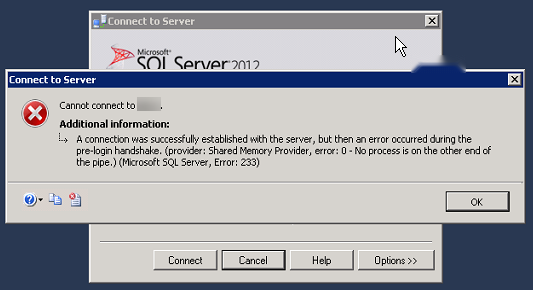
SQL Server connection error message එක.
ඇයි මේක වෙන්නේ
Security standards සම්පූර්ණ කරන්න, administrators ලා SSL 2.0/3.0 සහ TLS 1.0 disable කරනවා. පරණ SQL Server builds සහ පරණ .NET clients TLS 1.2 support කරන්නේ නෑ, ඒ නිසා secure handshake එක fail වෙනවා — network connection එක success වුණත් මේ error එක එනවා.
Fix 1 — SQL Server Cumulative Update එක Install කරන්න
1. ඔබේ SQL Server version එකයි build එකයි identify කරන්න.
2. ඔබේ version එකට TLS 1.2 support එකතු කරන cumulative update (හෝ service pack) එක Microsoft එකෙන් download කරලා install කරන්න.
3. SQL Server service එක restart කරන්න.
4. ආපහු connect වෙලා test කරන්න.
Fix 2 — .NET Framework Install/Update කරන්න
1. SQL Server එකේයි client එකේයි දෙකේම .NET Framework 4.6 හෝ ඊට අලුත් එකක් install වෙලා තියෙනවා කියලා බලන්න.
2. අලුත් .NET versions default විදිහට TLS 1.2 support කරනවා.
3. Install කළාට පස්සේ machine එක restart කරන්න.
Fix 3 — IISCrypto එකෙන් Protocols Manage කරන්න
1. SQL Server host එකේ Nartac IISCrypto (official) download කරන්න.
2. කොයි TLS/SSL protocols enable වෙලාද කියලා review කරන්න.
3. TLS 1.2 enable වෙලා තියෙනවා කියලා බලන්න (ඒක required), insecure protocols disable තියාගෙන.
4. Changes apply කරලා reboot කරන්න.
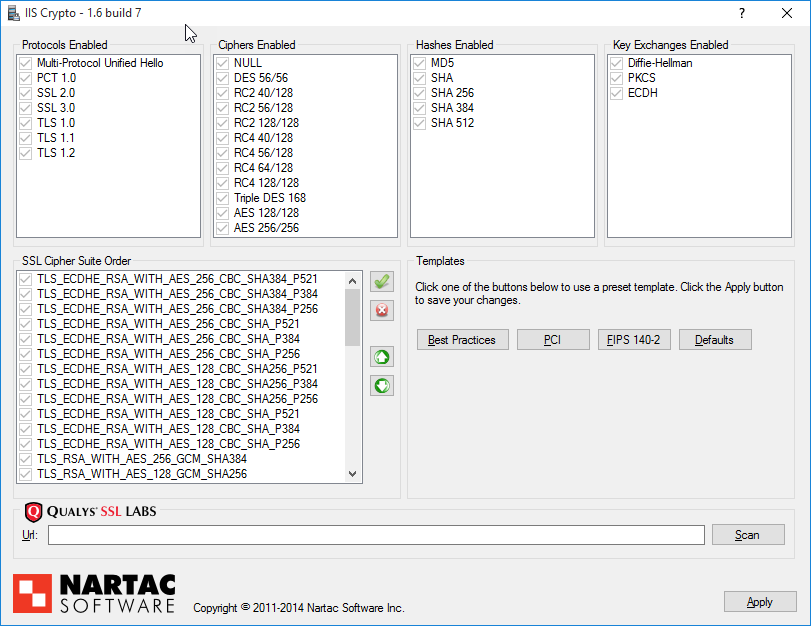
IISCrypto එකෙන් කොයි SSL/TLS protocols enable වෙලාද කියලා manage කරනවා.
Fix 4 — Registry එකේ TLS Settings Verify කරන්න
Warning: Edit කරන්න කලින් registry එක backup කරන්න.
1. HKEY_LOCAL_MACHINE\SYSTEM\CurrentControlSet\Control\SecurityProviders\SCHANNEL\Protocols වලට යන්න.
2. Client සහ Server වලට TLS 1.2 තියෙනවා, Enabled කියලා confirm කරන්න (DisabledByDefault = 0, Enabled = 1).
3. Reboot කරලා connection එක retry කරන්න.
Troubleshooting
Problem: SQL Server update කළාට පස්සෙත් fail වෙනවා.
Solution: Client/application එකේ .NET Framework එකත් 4.6+ වලට update කරලා, දෙපැත්තෙම TLS 1.2 enable වෙලා තියෙනවා කියලා confirm කරන්න.
Problem: TLS 1.2 enable, ඒත් තවම fail වෙනවා.
Solution: SQL Server build එක TLS 1.2 support කරනවද බලන්න (required CU එක apply කරන්න), client-server අතර force-encryption mismatch එකක් නැති බව බලන්න.
Problem: IISCrypto changes වලින් වෙන services broke.
Solution: TLS 1.2 enable තියාගෙන වෙන apps වලට තවම ඕන protocols disable කරන එක avoid කරන්න; known-good template එකක් reapply කරලා reboot කරන්න.
Problem: App එක පරණ driver එකක් පාවිච්චි කරනවා.
Solution: SQL client driver එක (ODBC/OLE DB) TLS 1.2 support කරන version එකකට update කරන්න.
Conclusion
මේ handshake error එක කියන්නේ TLS 1.2 compatibility gap එකක්. SQL Server patch කරලා, .NET 4.6+ install වෙලා තියෙනවා කියලා බලලා, client-server දෙකේම TLS 1.2 enable වෙලා තියෙනවා කියලා confirm කරන්න — එතකොට secure connection එක success වෙනවා.
About SoftwareKey.lk
මේ guide එක SoftwareKey.lk Knowledge Base එකේ කොටසක්. තව step-by-step IT guides සහ support වලට softwarekey.lk එකට යන්න.