












Overview
Program එකක් MSVCP140.dll, VCRUNTIME140.dll, හෝ MSVCR120.dll වගේ missing DLL එකක් report කරනකොට, බොහෝවිට install වෙලා නැති හෝ damaged Visual C++ Redistributable එකක් ඕන. මේ guide එකෙන් missing files restore කරන safe ක්රම පෙන්නනවා.
Missing DLL errors බොහෝවිට Visual C++ Redistributable problem එකක් පෙන්නනවා.
Warning: Individual DLL files random "DLL download" websites වලින් download කරන්න එපා — ඒවා common malware vector එකක්. ඒ වෙනුවට official runtime එක install කරලා DLLs restore කරන්න.
Key Takeaways
- ගොඩක් missing-DLL errors හරි Visual C++ Redistributable එක install කරලා fix වෙනවා.
- x64 සහ x86 runtimes දෙකම install කරන්න — ගොඩක් apps 32-bit.
- DLL එකක් re-register කරලා හෝ Windows repair කරලා corrupted cases fix කරනවා.
- Untrusted sites වලින් loose DLLs කවදාවත් download කරන්න එපා.
DLL එකක් කියන්නේ මොකක්ද?
DLL (Dynamic Link Library) එකක් කියන්නේ programs කිහිපයක් පාවිච්චි කරන shared code. Visual C++ runtimes common DLLs ගොඩක් දෙනවා; හරි runtime එක නැත්නම්, ඒක මත depend වෙන apps start වෙන්නේ නෑ.
Fix 1 — Visual C++ Redistributable එක Reinstall කරන්න
1. Microsoft's official "Latest supported Visual C++ Redistributable downloads" page එකට යන්න.
2. X64 (vc_redist.x64.exe) සහ X86 (vc_redist.x86.exe) packages දෙකම download කරලා install කරන්න.
3. PC එක restart කරලා program එක ආපහු try කරන්න.
4. පරණ apps වලට, ඕන කරන specific year (2013, 2012, ආදිය) එකත් install කරන්න.
Fix 2 — DLL එක Re-register කරන්න
1. Command Prompt එක administrator විදිහට open කරන්න.
2. Run: regsvr32 "MSVCP140.dll" (named DLL එකෙන් replace කරන්න).
3. module load වුණා ඒත් entry point හම්බ වුණේ නෑ කියලා report කළොත්, DLL එක self-registering නෑ — ඒ වෙනුවට runtime එක reinstall කරන්න.
Fix 3 — Program එකයි Windows එකයි Repair කරන්න
1. Error එක report කරන program එක reinstall හෝ repair කරන්න (Settings > Apps > app එක > Modify/Repair).
2. Pending Windows updates install කරන්න.
3. System files repair කරන්න: DISM /Online /Cleanup-Image /RestoreHealth run කරලා ඊට පස්සේ sfc /scannow.
Fix 4 — Scan කරලා Restore කරන්න
- Full malware scan එකක් run කරන්න — malware system DLLs delete/replace කරන්න පුළුවන්.
- Available නම්, error එක පටන්ගන්න කලින් point එකකට System Restore පාවිච්චි කරන්න.
Troubleshooting
Problem: Runtime එක install කළාට පස්සෙත් DLL එක missing.
Solution: x64 සහ x86 versions දෙකම, app එකට ඕන specific Visual C++ year එකත් install කරලා restart කරන්න.
Problem: 64-bit Windows එකේ 32-bit app එකක් fail වෙනවා.
Solution: x64 එක්කම x86 (32-bit) Visual C++ Redistributable එක install කරන්න.
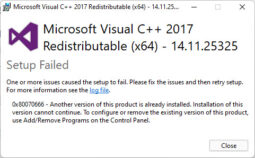
Problem: Runtime reinstall 0x80070666 error එකෙන් fail වෙනවා.
Solution: අලුත් version එකක් දැනටමත් තියෙනවා; existing 2015–2022 entries uninstall කරලා reinstall කරන්න, නැත්නම් Repair පාවිච්චි කරන්න.
Problem: ආපහු ආපහු එනවා.
Solution: Malware වලට scan කරලා SFC/DISM run කරන්න; persistent corruption වලට Windows in-place repair එකක් ඕන වෙන්න පුළුවන්.
Conclusion
Missing Visual C++ DLLs බොහෝවිට Microsoft එකෙන් official runtimes (x64 සහ x86 දෙකම) install කරලා, ඕන නම් app එක හෝ Windows repair කරලා fix වෙනවා. Untrusted sites වලින් loose DLLs කවදාවත් ගන්න එපා — ඒවා safe ක්රමයට restore කරන්න.
About SoftwareKey.lk
මේ guide එක SoftwareKey.lk Knowledge Base එකේ කොටසක්. තව step-by-step IT guides සහ support වලට softwarekey.lk එකට යන්න.