












Overview
Generating GPO reports helps you audit, document, and troubleshoot Group Policy in a domain. PowerShell’s Get-GPOReport and GPResult create detailed HTML or XML reports of policy settings. This guide shows how.
Generate detailed Group Policy reports with PowerShell.
Key Takeaways
- Get-GPOReport documents a GPO’s settings; GPResult shows applied (resultant) policy.
- Reports can be exported as HTML (readable) or XML (machine-parseable).
- Requires the Group Policy module (part of RSAT).
- Run on a domain-joined machine with appropriate rights.
Before You Begin
- Install RSAT / the GroupPolicy PowerShell module.
- Run PowerShell as an administrator with domain permissions.
- Import the module: Import-Module GroupPolicy.
List All GPOs
1. Open PowerShell as administrator.
2. Run: Get-GPO -All | Select-Object DisplayName, Id
3. This lists every GPO in the domain with its name and GUID.
Report on a Single GPO
1. HTML: Get-GPOReport -Name "Policy Name" -ReportType HTML -Path "C:\Reports\Policy.html"
2. XML: Get-GPOReport -Name "Policy Name" -ReportType XML -Path "C:\Reports\Policy.xml"
3. Open the HTML file in a browser to read the settings.
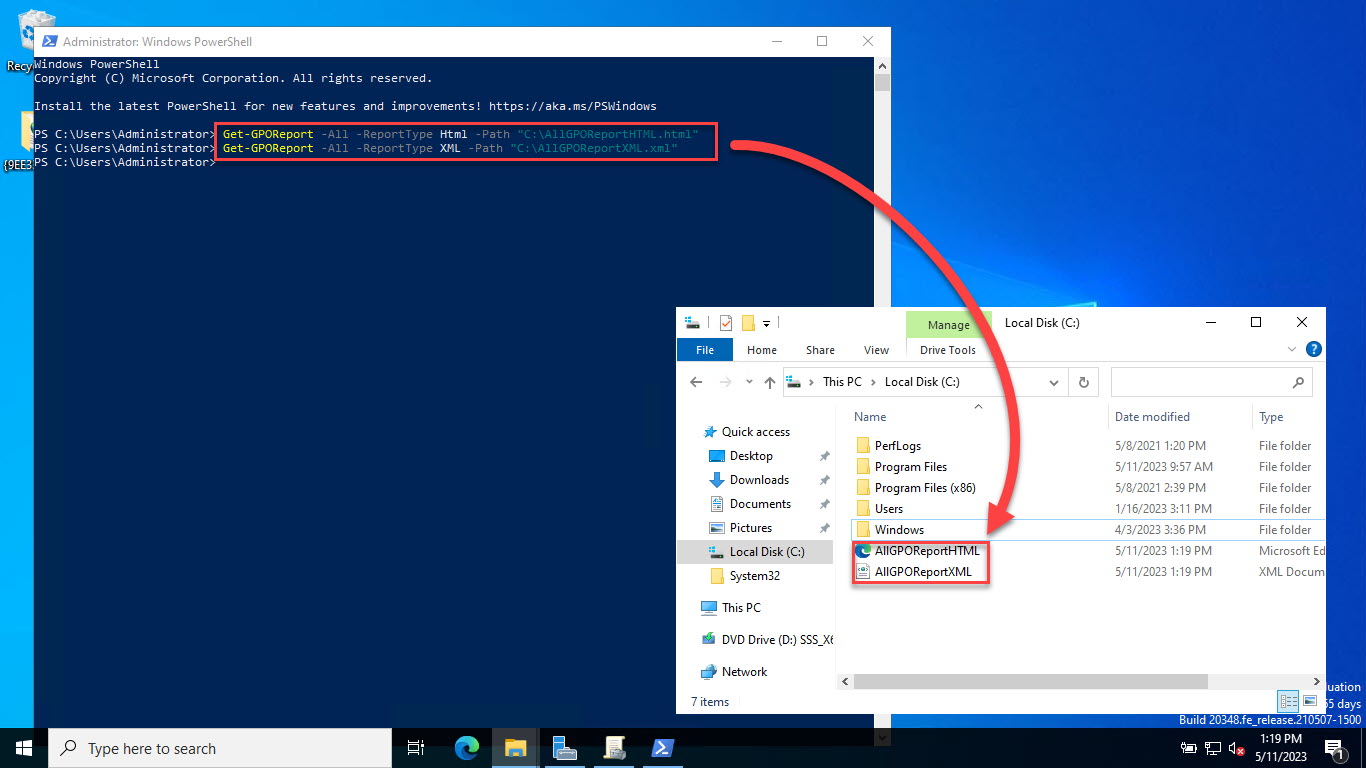
Create an HTML/XML report for GPOs.
Report on All GPOs
1. One combined HTML report: Get-GPOReport -All -ReportType HTML -Path "C:\Reports\AllGPOs.html"
2. Individual reports: Get-GPO -All | ForEach-Object { Get-GPOReport -Name $_.DisplayName -ReportType HTML -Path "C:\Reports\$($_.DisplayName).html" }
Resultant Policy With GPResult
1. See applied policy for the current user/computer: gpresult /h C:\Reports\RSOP.html
2. Open the report to see which GPOs actually applied and why.
3. Use gpresult /r for a quick console summary.
Troubleshooting
Problem: "Get-GPO is not recognized".
Solution: Install RSAT/the GroupPolicy module and run Import-Module GroupPolicy; ensure you are on a domain-joined machine.
Problem: Access denied generating reports.
Solution: Run PowerShell as administrator with an account that has rights to read GPOs in the domain.
Problem: "Index was out of range" error.
Solution: Update the GroupPolicy module/RSAT; this is a known bug fixed in newer versions.
Problem: How do I export to CSV?
Solution: Parse the XML report (Get-GPOReport -ReportType XML) and export the fields you need with Export-Csv.
Conclusion
PowerShell makes documenting Group Policy easy: use Get-GPOReport for full HTML/XML reports of GPO settings and GPResult for resultant policy. They are essential for audits and troubleshooting in any AD environment.
</w:pBdr><w:spacing w:before="220" w:after="40"/></w:pPr><w:r><w:rPr><w:b/><w:bCs/><w:color w:val="0B5394"/><w:sz w:val="21"/><w:szCs w:val="21"/><w:rFonts w:ascii="Calibri" w:cs="Calibri" w:eastAsia="Calibri" w:hAnsi="Calibri"/></w:rPr><w:t xml:space="preserve">About SoftwareKey.lk
This guide is part of the SoftwareKey.lk Knowledge Base. For more step-by-step IT guides and support, visit softwarekey.lk.