












Activate Microsoft 365 with your EDU account
- Get your EDU account details: after purchase you receive login details — an email address such as
[email protected]and a temporary password. Check your inbox (and spam folder) for the delivery email. - Sign in to the Microsoft portal: go to office.com, click Sign in, enter your EDU credentials, and set a new secure password when prompted on first login.
- Accept the license terms: once signed in, Microsoft automatically recognises your Education license. Accept the terms to unlock all Microsoft 365 apps and services.
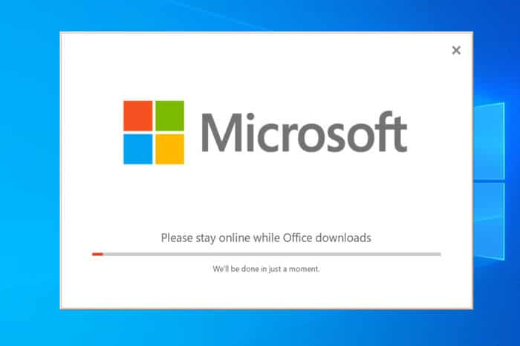
- Install the Office apps: on Office.com click Install Office → Microsoft 365 Apps, download the installer and follow the setup instructions. Works on Windows and macOS; on Chromebooks use the web apps instead.
- Activate your apps: open Word, Excel or PowerPoint and sign in with the same EDU account — your subscription is verified automatically.
- Use the online apps (optional): Word, Excel, PowerPoint, OneNote, Teams and Outlook are also available directly at office.com with no installation.
Troubleshooting
- Double-check the email address and password are typed exactly as delivered.
- If you see “License not found”, wait 10–15 minutes and try again — new accounts can take a moment to provision.
- Make sure your internet connection is stable during activation.
- If apps repeatedly show “Sign-in required”, uninstall any previous Office versions, restart, and reinstall from Office.com.
Still stuck? Contact our support team and we’ll get you activated.