












Overview
Office language accessory packs වලින් ඔබට interface එක, help, සහ proofing tools අමතර languages වල use කරන්න පුළුවන්. multilingual users සහ teams වලට මේක ප්රයෝජනවත්. මේ guide එකෙන් official source එකෙන් ඒවා add කරන හැටි කියලා දෙනවා.
Key Takeaways
- Language packs වලින් Office එකට display, help, සහ proofing languages add කරනවා.
- ඔබ ඒවා install කරන්නේ Office එකේම language options වලින්.
- Proofing tools වලින් language එකකට spell-check සහ grammar add කරනවා.
- Packs ඔබේ Office version එකට සහ architecture එකට match වෙනවා.
Install a Language Pack
1. ඕනෑම Office app එකක් open කරලා File > Options > Language වෙත යන්න.
2. Office display language හෝ authoring languages යටතේ, Add a language click කරන්න.
3. Language එක select කරලා pack එක install කරන්න තෝරන්න.
4. Microsoft එකෙන් ඒක download කරන්න prompt එක follow කරලා, Office restart කරන්න.
Office language options වල language එකක් add කිරීම.
Set Display and Proofing
1. ඔබ කැමති display language එක set කරලා list එකේ මුදුනට move කරන්න.
2. ඔබ use කරන හැම authoring language එකකටම proofing (spell-check) add කරන්න.
3. Changes apply කරන්න සියලුම Office apps restart කරන්න.
4. ribbon එකයි proofing එකයි දැන් අලුත් language එක use කරනවා කියලා confirm කරන්න.
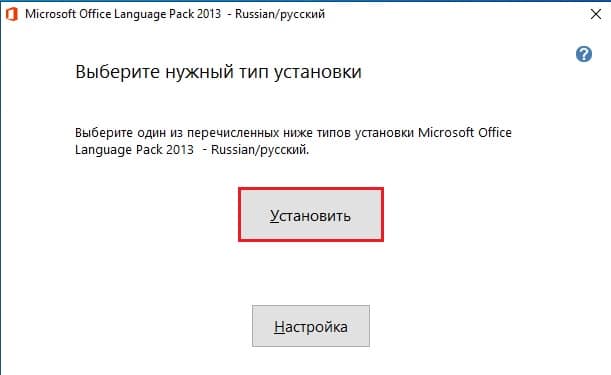
Office එකේ display සහ proofing languages තෝරාගැනීම.
Note: ඔබේ හරියටම Office version එකට match වෙනවා කියලා තහවුරු කරගන්න language packs Office ඇතුලෙන් හෝ Microsoft ගේ official site එකෙන් install කරන්න.
Troubleshooting
Problem: Display language එක වෙනස් වෙන්නේ නැහැ.
Solution: ඒක display language list එකේ මුදුනට move කරලා සියලුම Office apps restart කරන්න.
Problem: Language එකකට spell-check නැහැ.
Solution: authoring languages section එක යටතේ ඒ language එකට proofing tools add කරන්න.
Problem: Pack එක install වෙන්නේ නැහැ.
Solution: ඔබේ Office version එකයි matching accessory pack එක select කලාද කියලයි confirm කරන්න.
Problem: සමහර apps වල විතරයි language එක වෙනස් වුණේ.
Solution: Change එක suite එක පුරාම apply වෙන්න හැම Office app එකක්ම සම්පූර්ණයෙන් close කරලා නැවත open කරන්න.
Conclusion
Office language packs වලින් මුළු suite එකම, proofing tools සමඟම, ඔබ කැමති language එකේ වැඩ කරනවා. ඒවා Office එකේ language options වලින් add කරලා apply කරන්න restart කරන්න.
About SoftwareKey.lk
මේ guide එක SoftwareKey.lk Knowledge Base එකේ කොටසක්. තව step-by-step IT guides සහ support වලට softwarekey.lk එකට යන්න.