












3 Ways to Check If Windows Is Activated
Confirm your Windows activation status via Settings, Control Panel, and the command line.
Overview
Knowing whether Windows is activated matters for updates, personalization, and compliance. This guide shows three ways to check activation status — Settings, Control Panel, and the slmgr command.
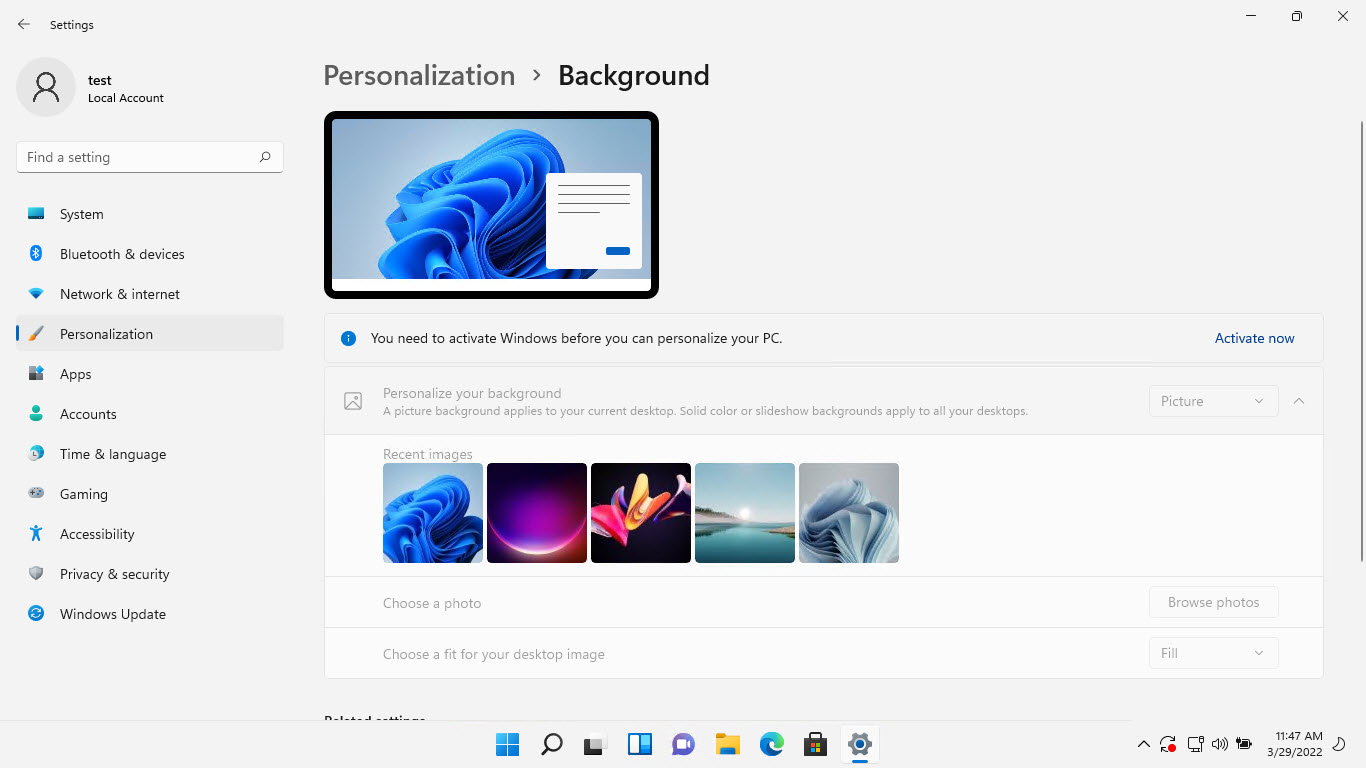
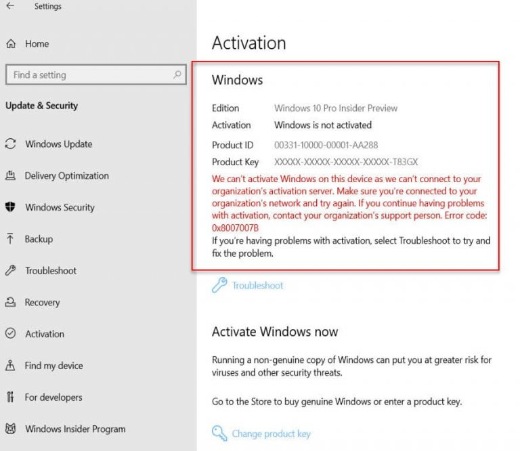
Checking Windows activation status.
Key Takeaways
- Settings > Activation shows status in Windows 10/11.
- Control Panel (System) shows it on all versions.
- slmgr /xpr and /dlv give detailed status.
- Activate only with a genuine, licensed key.
Method 1: Settings
1. Open Settings > System > Activation (Windows 10/11).
2. Read the status: "Windows is activated…".
3. It also shows how you’re licensed (digital license or product key).
Method 2: Control Panel (System)
1. Open Control Panel > System and Security > System (or run sysdm.cpl-adjacent view).
2. Scroll to the Windows activation section at the bottom.
3. It shows activation status and Product ID.
Method 3: Command Line (slmgr)
1. Open Command Prompt as administrator.
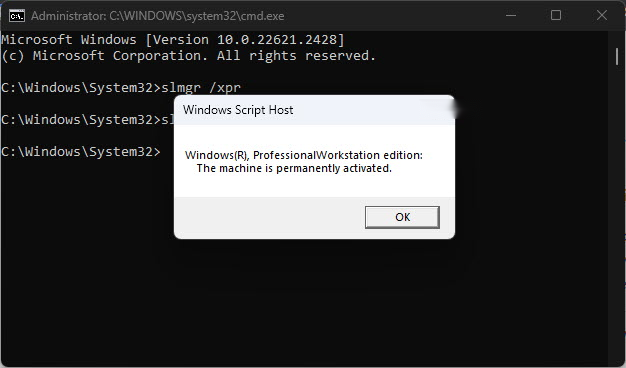
2. Quick status: slmgr /xpr
3. Detailed info: slmgr /dlv (edition, license status, activation ID).
4. "The machine is permanently activated" means you’re fully licensed.
Checking activation with slmgr.
If Windows Isn’t Activated
1. Open Settings > System > Activation.
2. Sign in with the Microsoft account linked to your digital license, or enter a genuine product key.
3. Use the Activation troubleshooter if you recently changed hardware.
4. Only use legitimately purchased licenses.
Troubleshooting
Problem: "Windows not activated" after a hardware change.
Solution: Run the Activation troubleshooter and sign in with the linked Microsoft account to reapply your digital license.
Problem: slmgr shows a grace/notification period.
Solution: Enter/reapply a valid key; the grace period ends and activation is required.
Problem: Digital license not recognized.
Solution: Ensure you’re signed into the correct Microsoft account tied to the license.
Problem: Need a key.
Solution: Purchase a genuine license from Microsoft or an authorized retailer.
Conclusion
Check activation quickly in Settings > System > Activation, in Control Panel’s System page, or with slmgr /xpr for a definitive answer. If Windows isn’t activated, sign in with your linked Microsoft account or enter a genuine key to activate.